- Add Noctaly to Your Discord Server
- How the Economy Works
- Money Options
- Money Commands
- Member
- Admin
- Daily Command Options
- Money Top
- Work Customization
- Work Replies
- Configure Profile Card
- Create the Rarities
- Create the Items
- Custom Item
- Options
- Shop
- Economy Item Actions
- Color Item
- Options
- Shop
- Icon Item
- Options
- Shop
- Item Commands
- Member
- Admin
- Create the Chests
- Options
- **Shop**
- **Chest Opening Animation**
- Chest Commands
- Member
- Admin
- Create the Crafting Recipes
- Recipe Commands
- Member
- Configure Role & Channel Boosters
- Role Boosters Options
- Add Role & Channel Boosters
- Example Member Flow
How to Set Up an Economy System on Discord
Add Noctaly to Your Discord Server
Set up Noctaly in your Discord server to start using the Economy System.
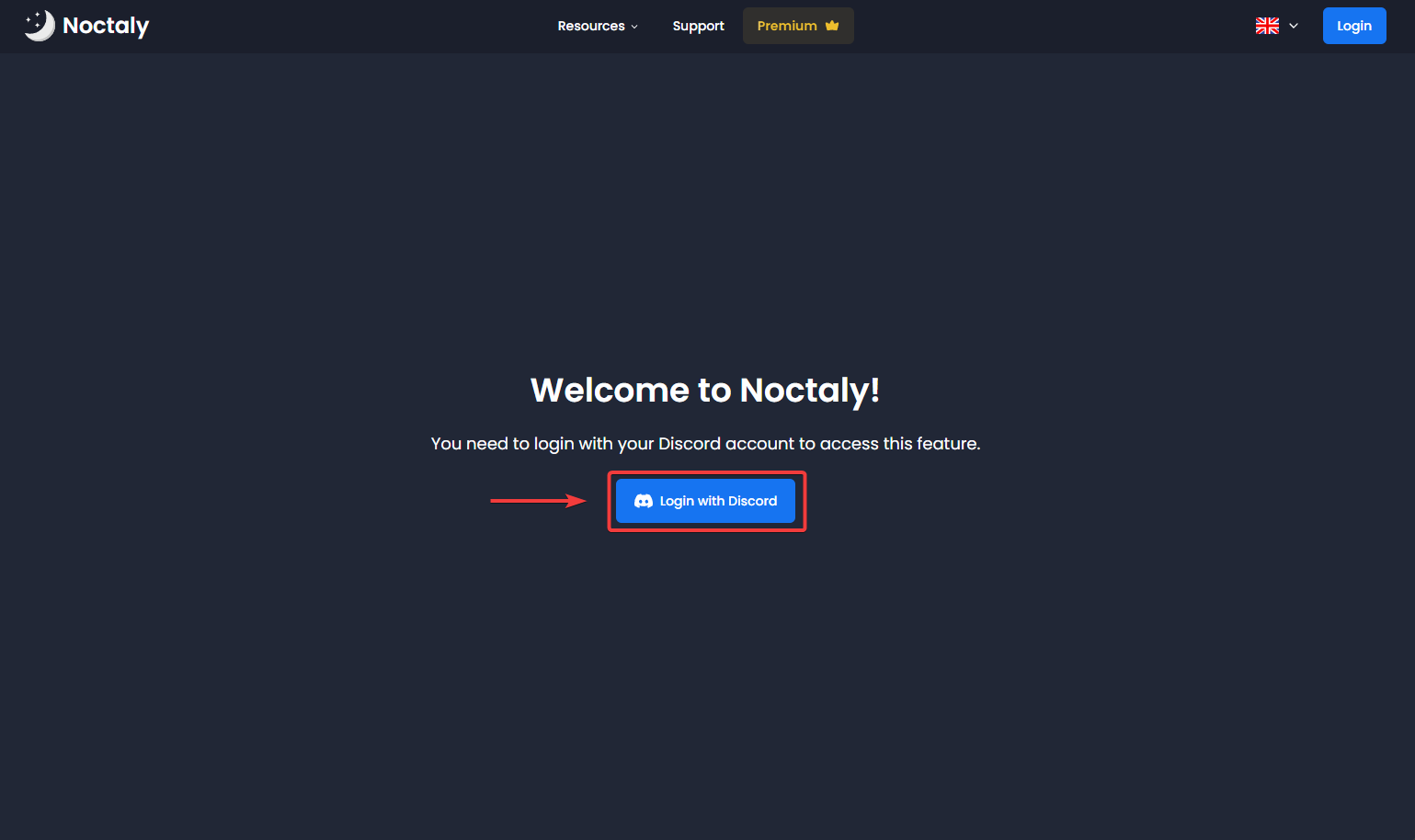
- Go to the Dashboard and log into your Discord account.
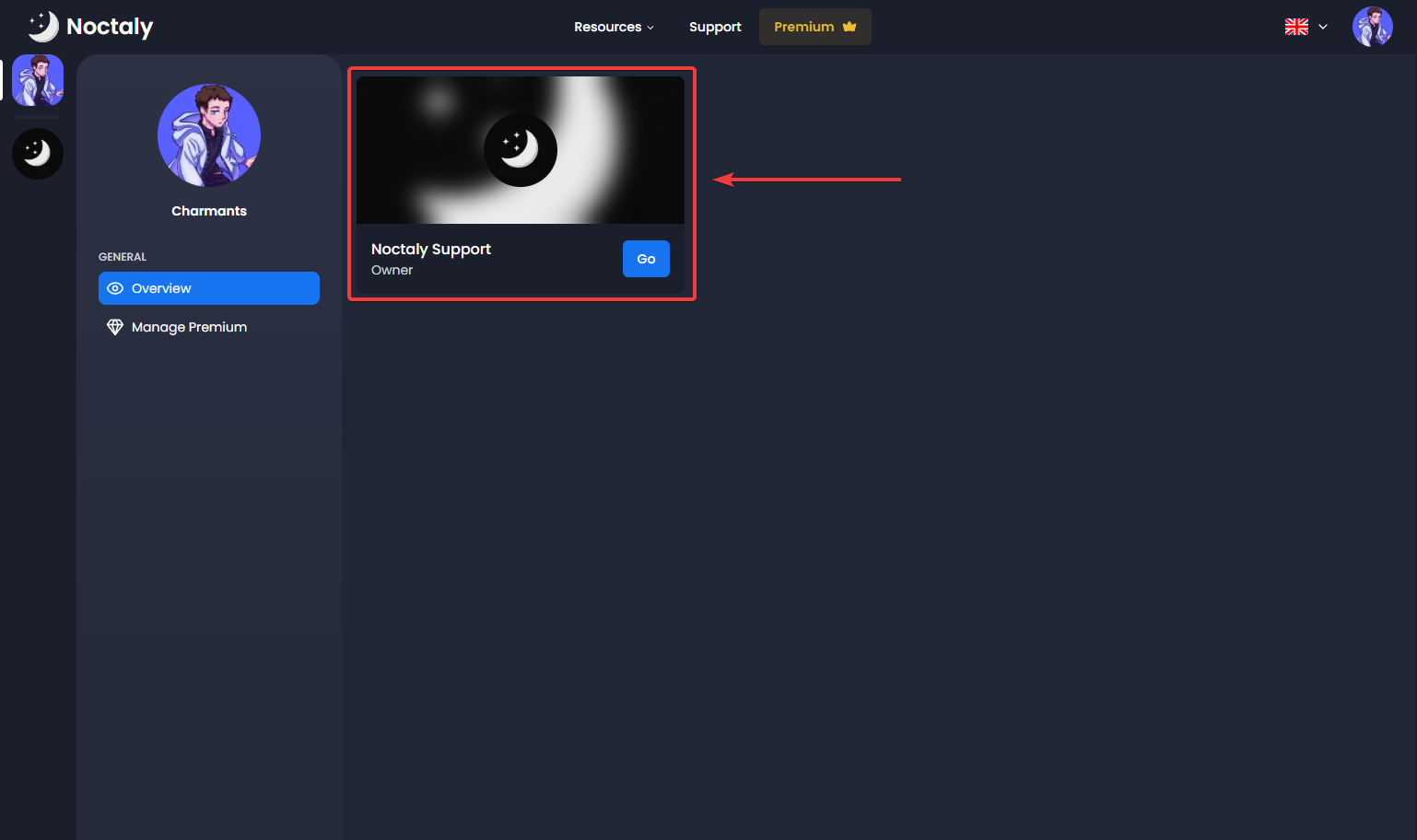
- Select the server you want to set up the Economy System in.
- Click on the Economy module.
How the Economy Works
The Economy System adds a currency to your server that members can earn, save, trade, and spend. Members can get money from commands such as /work, /daily, or by gambling with /coinflip, /blackjack, and /roulette. They can spend this money in the /shop to buy items, chests, or craft new ones using recipes. Members can also trade with each other using /pay for money and /item give for items.
Admins have full control over the economy. They can add or remove money from members, give them items or chests, clear a user’s inventory, reset the economy, and restock the shop. The system is designed to encourage members to stay active and work towards long-term goals in your server.
Money Options
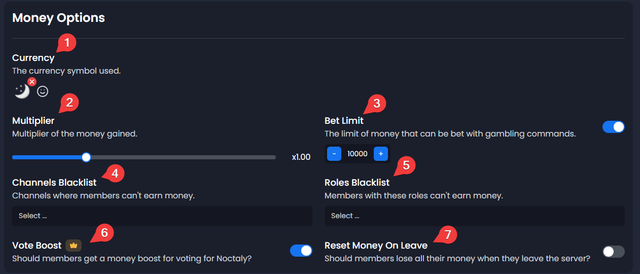
- Currency: Sets the symbol displayed next to money amounts as an emoji or text in profiles, the shop, and other commands. Choose a currency that fits your community.
- Multiplier: A global multiplier affecting all money earnings (e.g., from /work, /daily), where 2 doubles all earnings. Set the multiplier value (2.0 = +100%).
- Bet Limit: Sets the maximum amount members can gamble at once using commands like /coinflip. Set a limit to prevent large, rapid wins or losses.
- Channels Whitelist or Blacklist: Choose whether selected channels are allowed to earn money or blocked from earning money.
- Roles Whitelist or Blacklist: Choose whether selected roles are allowed to earn money or blocked from earning money.
- Vote Boost: If enabled, members receive a money boost when they vote for Noctaly.
- Reset on Leave: If enabled, a member’s money balance is reset when they leave the server.
Money Commands
Member
- /coinflip - Bet money on a coin flip
- /blackjack - Host a blackjack game solo or with up to 4 players against the dealer
- /roulette - Create a roulette game that everyone in the channel can play
- /daily - Claim your daily reward
- /moneytop - Get the money top of the server
- /pay - Send money to another user
- /profile - View your own or another user's profile
- /rps - Play a game of rock, paper, scissors against someone
- /work - Work to earn money
- /balance - See the exact money of a user
- /notification settings - Configure your notification settings with the new /work and /daily reminders
Admin
- /amoney add - Add money to a user
- /amoney balance - Check a user's balance
- /amoney remove - Remove money from a user
- /amoney set - Set a user's balance
- /amoney transfer - Transfer money between users
- /reset - Reset the levels, stats, money, and profiles of everyone
Daily Command Options
- Base Reward: Fixed reward for day 1. When off, the step reward is used as the day 1 base.
- Step Reward: Amount added per streak day, scaling up until the cap. When off, 80% of the combined work reward range is used.
- Streak Cap: The number of days before the primary scaling stops and the flat streak bonus takes over.
- Streak Bonus: The amount added per day beyond the streak cap.
Money Top
- Custom URL: The money top custom URL. This URL must be unique and is based on a first-come, first-served basis.
- Auto Money Top: Channel where the money top is automatically updated every hour.
- Message Color: The color of the auto money top embed.
The Money Top page on the website lets you view the top 100 members.
Work Customization
- Work Money: Determines the range of money that can be earned with the /work command.
- Work Cooldown: Sets the cooldown time for the /work command in minutes.

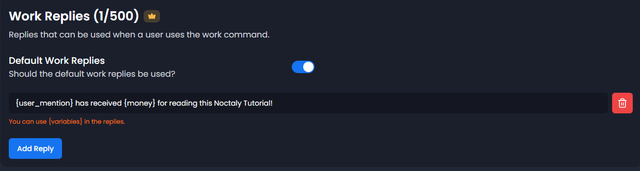
Work Replies
Replies that can be used when a user uses the /work command.
You can add {variables} to fields to add dynamic values such as the username. Type { in a field to list them.
Configure Profile Card
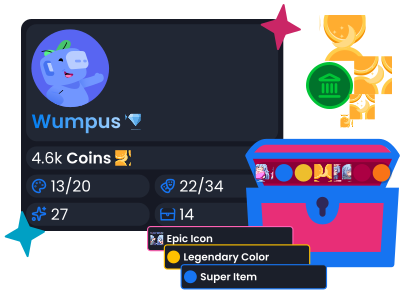
You have many personalization options to create a profile card that reflects the image of your server. Profile card personalization is very important, as it helps your server stand out from the others by adding a unique touch. We won't go into detail about the customization options, as it's straightforward. Happy customization! 🌈
Create the Rarities
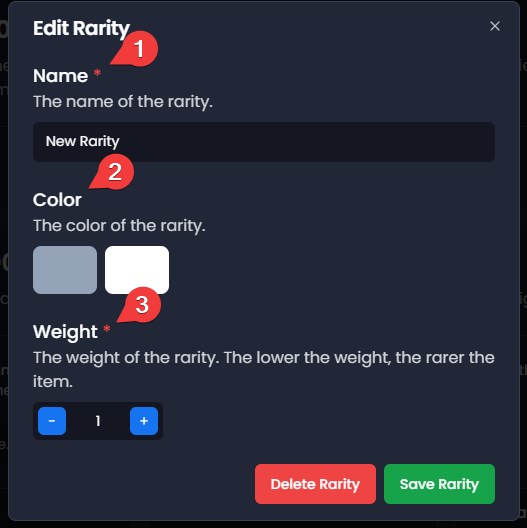
Rarities determine how common or rare items are in chests, with higher weights indicating more common items and lower weights indicating rarer items.
- Create Rarity: Click on Create Rarity to add a new rarity to your server.
- Name: Assign a unique name to the rarity (e.g., Common, Rare, Legendary) to identify it.
- Col: Select the rarity level that determines how common or rare the item is.
- Weight: Set a numerical value where higher numbers make the rarity more likely to appear in chests; common rarities have high weights, while legendary have low weights.
- Weight: Set a numerical value where higher numbers make the rarity more likely to appear in chests; common rarities have high weights, while legendary have low weights.
Create the Items
Items are objects that members can purchase, collect, and utilize. Items can grant rewards or perform actions such as giving or removing roles, XP, money, items, or chests. Items can be found in chests, purchased in the /shop, crafted using recipes, or given by admins.
Custom Item
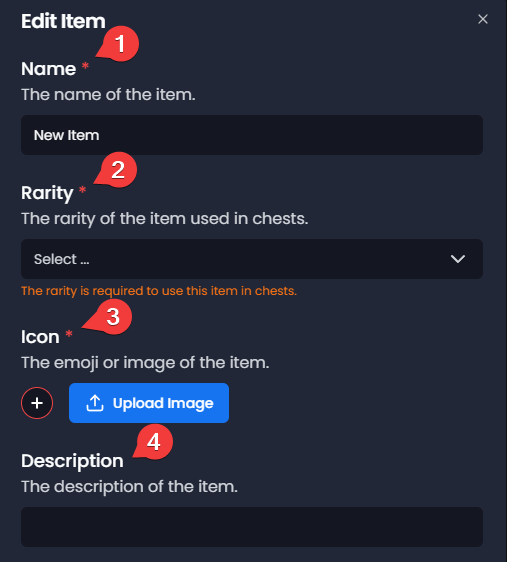
Custom items allow flexible actions and rewards. Click Create Item and select Custom.
- Name: Assign a unique name to the item for identification.
- Rarity: Select the rarity level that determines how common or rare the item is.
- Icon: Choose an emoji to represent the item visually in displays.
- Description: The description of the item.
Options
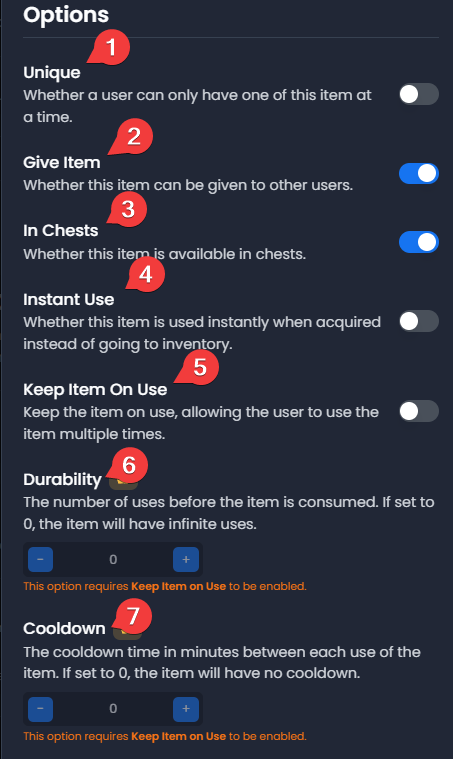
- Unique: If enabled, members can only own one of this item at a time.
- Give Item: If enabled, this item can be given to other members.
- In Chests: If enabled, this item can appear as a reward when members open chests.
- Instant Use: If enabled, the item is used immediately when acquired instead of being added to the inventory.
- Keep Item on Use: If enabled, the item is not consumed when used, allowing it to be used multiple times.
- Durability: Sets the number of uses before the item is consumed. If set to
0, the item has unlimited uses. Requires Keep Item on Use to be enabled. - Cooldown: Sets the cooldown time in minutes between each use of the item. If set to
0, the item has no cooldown. Requires Keep Item on Use to be enabled.
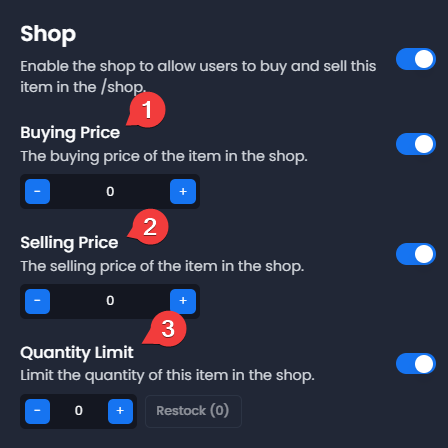
Shop
- Shop Toggle: Enable or disable the shop feature for this item.
- Buying Price: Set the cost in money for members to purchase the item.
- Selling Price: Set the amount of money members receive when selling the item.
- Quantity Limit: Set the maximum number of this item available for purchase in the shop. Use the Restock button to replenish the quantity.
- Required Role: Sets a role required to buy or sell the item in the shop.
Economy Item Actions
Actions define what happens when the item is used.
Multiple actions can be added to a single item.
Available actions:
- Change XP: Give or remove XP from the user
- Change Money: Give or remove money from the user
- Change Item: Give or remove items from the user
- Change Chest: Give or remove chests from the user
- Toggle Role: Adds the role if the user does not have it, otherwise removes it
- Add Role: Adds a role to the user
- Remove Role: Removes a role from the user
Actions are executed when the item is used.
Color Item
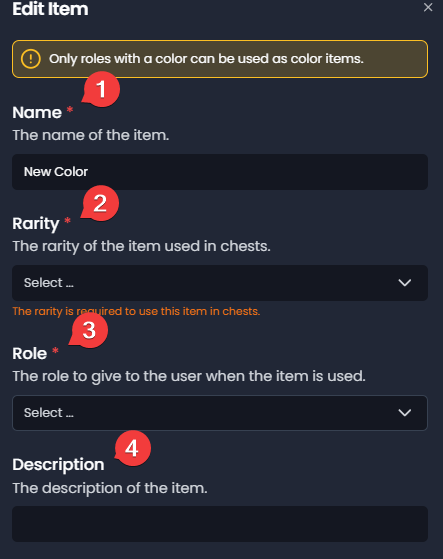
Color items grant colored roles to members. Click Create Item and select Color.
- Name: Assign a unique name to the item for identification.
- Rarity: Select the rarity level that determines how common or rare the item is.
- Role: Select the specific colored role that the item grants when used.
- Description: The description of the item.
Options
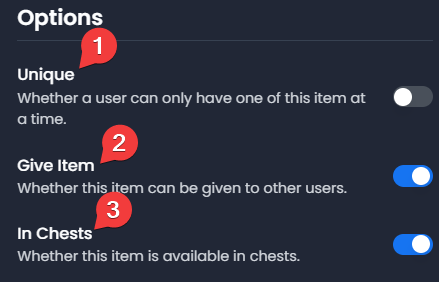
- Unique: If enabled, members can only own one of this item at a time.
- Giveable: If enabled, members can trade or give this item to other members.
- In Chests: If enabled, this item can appear as a reward when members open chests.
Shop
- Shop Toggle: Enable or disable the shop feature for this item.
- Buying Price: Set the cost in money for members to purchase the item.
- Selling Price: Set the amount of money members receive when selling the item.
- Quantity Limit: Set the maximum number of this item available for purchase in the shop. Use the Restock button to replenish the quantity.
- Required Role: Sets a role required to buy or sell the item in the shop.
Icon Item
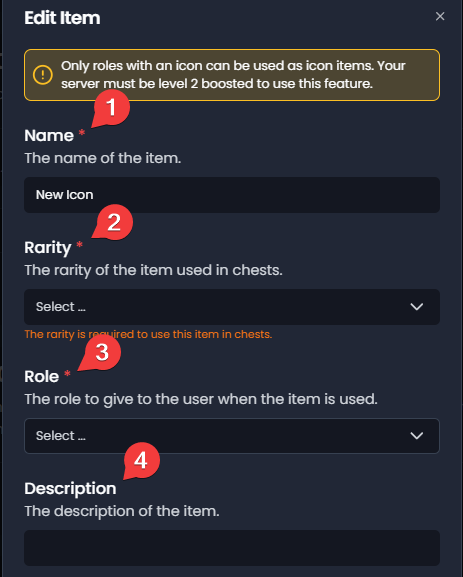
Icon items grant roles with icons (requires Level 2 server boost). Click Create Item and select Icon.
- Name: Assign a unique name to the item for identification.
- Rarity: Select the rarity level that determines how common or rare the item is.
- Role: Select the specific colored role that the item grants when used.
- Description: The description of the item.
Options
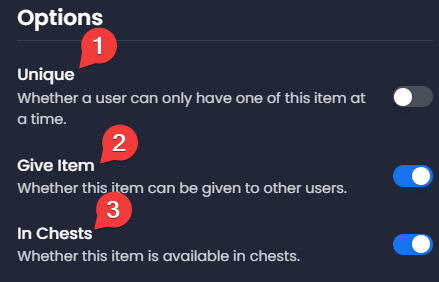
- Unique: If enabled, members can only own one of this item at a time.
- Giveable: If enabled, members can trade or give this item to other members.
- In Chests: If enabled, this item can appear as a reward when members open chests.
Shop
- Shop Toggle: Enable or disable the shop feature for this item.
- Buying Price: Set the cost in money for members to purchase the item.
- Selling Price: Set the amount of money members receive when selling the item.
- Quantity Limit: Set the maximum number of this item available for purchase in the shop. Use the Restock button to replenish the quantity.
- Required Role: Sets a role required to buy or sell the item in the shop.
Item Commands
Member
- /item buy – Buy an item without using the shop
- /item cooldowns – See the cooldown of your items
- /item duration – View the duration of active items
- /item give – Give an item to another member
- /item inventory – View your inventory
- /item sell – Sell an item without using the shop
- /item use – Use an item from your inventory
- /shop – View the shop to buy or sell items
If the user doesn't have enough money or XP, /item use now returns an error.
If the user doesn't have enough money to buy anything, /shop now shows a message.
Admin
- /aitem user clear – Clear all items from a user
- /aitem user use – Use an item for someone else
- /aitem user duration – See the duration of the roles of someone
- /aitem cooldowns list – See the cooldowns of someone
- /aitem cooldowns reset – Reset the cooldown of the item of someone
- /aitem restock-all – Restock all the items of the server in one command
Create the Chests
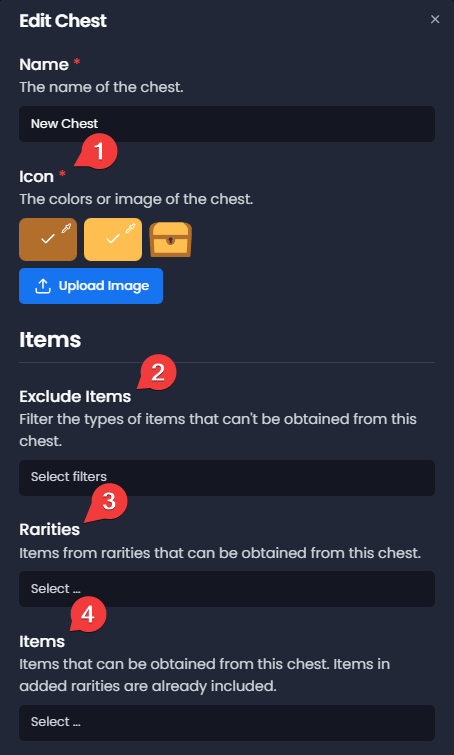
Chests are loot boxes rewarding members with random items based on rarity weights. Click on Create Chest to create a new chest.
- Icon: Set the chest icon, including its colors or a custom uploaded icon.
- Description: The description shown in /chest info.
- Exclude Items: Filter the types of items that can't be obtained from this chest.
- Rarities: Select which rarities can appear in this chest.
- Items: Choose specific items that can be obtained from this chest. Items in the added rarities are already included.
Options
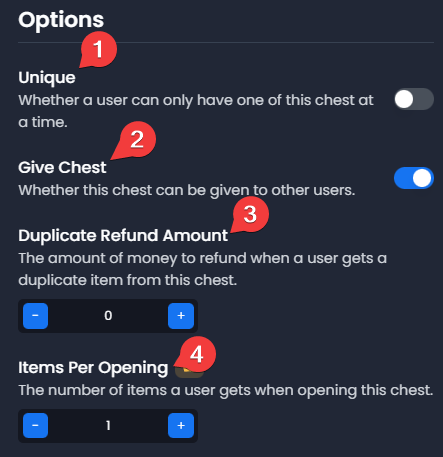
- Unique: If enabled, members can only own one of this chest at a time.
- Giveable: If enabled, members can trade or give this chest to other members.
- Items per Open: Select how many items are drawn each time the chest is opened.
Shop
- Shop Toggle: Enable or disable the shop feature for this chest.
- Buying Price: Set the cost in money for members to purchase the chest.
- Selling Price: Set the amount of money members receive when selling the chest.
- Quantity Limit: Set the maximum number of this chest available for purchase in the shop. Use the Restock button to replenish the quantity.
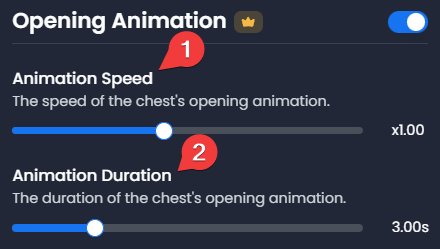
Chest Opening Animation
- Animation Speed: Set the speed of the chest's opening animation.
- Animation Duration: Set the duration of the chest's opening animation.
Chest Commands
Member
- /chest open - Open a chest
- /chest give - Give a chest to a user
- /chest inventory - View your chests
- /chest open-all - Open all your chests at once
- /chest info - See information, including the rarities and description of a chest that you own
Admin
- /achest restock - Restock a chest
- /achest restock-all - Restock all the chests of the server in one command
- /achest user add - Give a chest to a user
- /achest user remove - Remove a chest from a user
- /achest user inventory - View a user's chest inventory
Create the Crafting Recipes
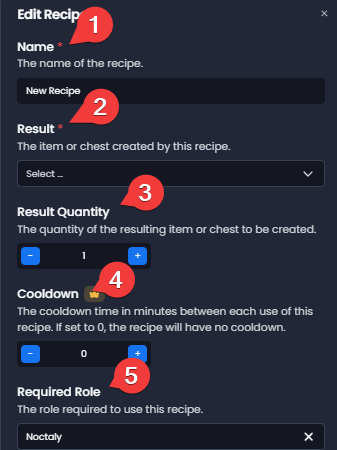
Crafting Recipes allow members to combine items and materials to create new items or chests. Click on Create Recipe to create a new crafting recipe for your server.
- Name: Assign a unique name to the recipe for identification.
- Result: Select the item or chest that will be crafted when this recipe is used.
- Result Quantity: Set the number of items or chests that the recipe produces.
- Required Role: Choose the role required to use this recipe.
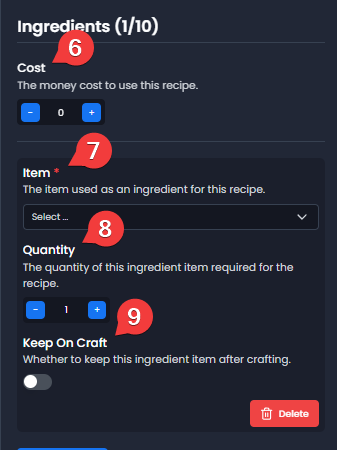
- Ingredients: Define the items required to craft the result. Each ingredient includes:
- Item: The item used as an ingredient.
- Quantity: The amount of the item required.
- Keep On Craft: If enabled, the item is not consumed when crafting.
- Cost: Set the amount of money required to use this recipe.
Recipe Commands
Member
- /recipe craft - Craft an item using a recipe
- /recipe list - List available crafting recipes. It only shows recipes you can partially craft by default, with an all option to view all recipes
- /recipe info - Display information about a crafting recipe
/recipe craft doesn't show already possessed unique items anymore.
Configure Role & Channel Boosters
Role Boosters Options
- Stack Boosters: This option stacks the boosters. If the option is activated and a member has a role with +100% and another with +200%, they will get 300% extra money. If the option is deactivated, the member will only get 200% extra money (highest wins).
Add Role & Channel Boosters
You can give a money multiplier to certain roles and channels.
- Click on Add Role/Channel
- You can set the money booster. The booster is in percent: 100% = x2.
- You can set the role/channel to add the money booster to.
- Repeat steps 1–3 until you have all the boosters you want.
Example Member Flow
- A member uses /work to earn money
- They save up and buy a chest from /shop
- They use /chest open to get a rare item
- They check /item inventory to see their new item
- They use /item use to get a reward (role, XP, or money)
- They can trade with /item give or /pay
- They can craft new items using /recipe craft