How to Create Components V2 Messages on Discord
Add Noctaly to Your Discord Server
Set up Noctaly in your Discord server to create a Message.
- Go to the Dashboard and log into your Discord account.
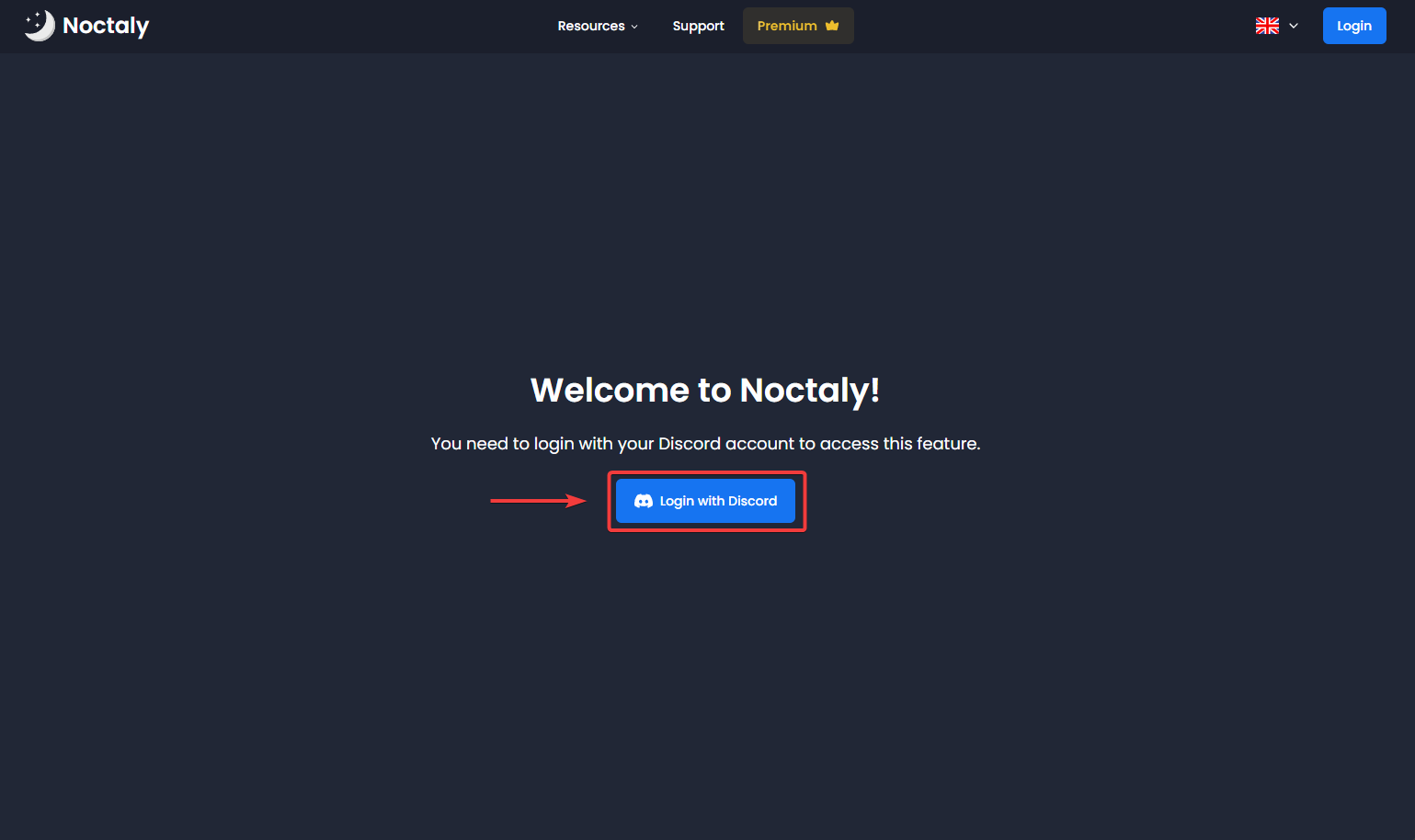
- Select the server you want to setup the Message in.
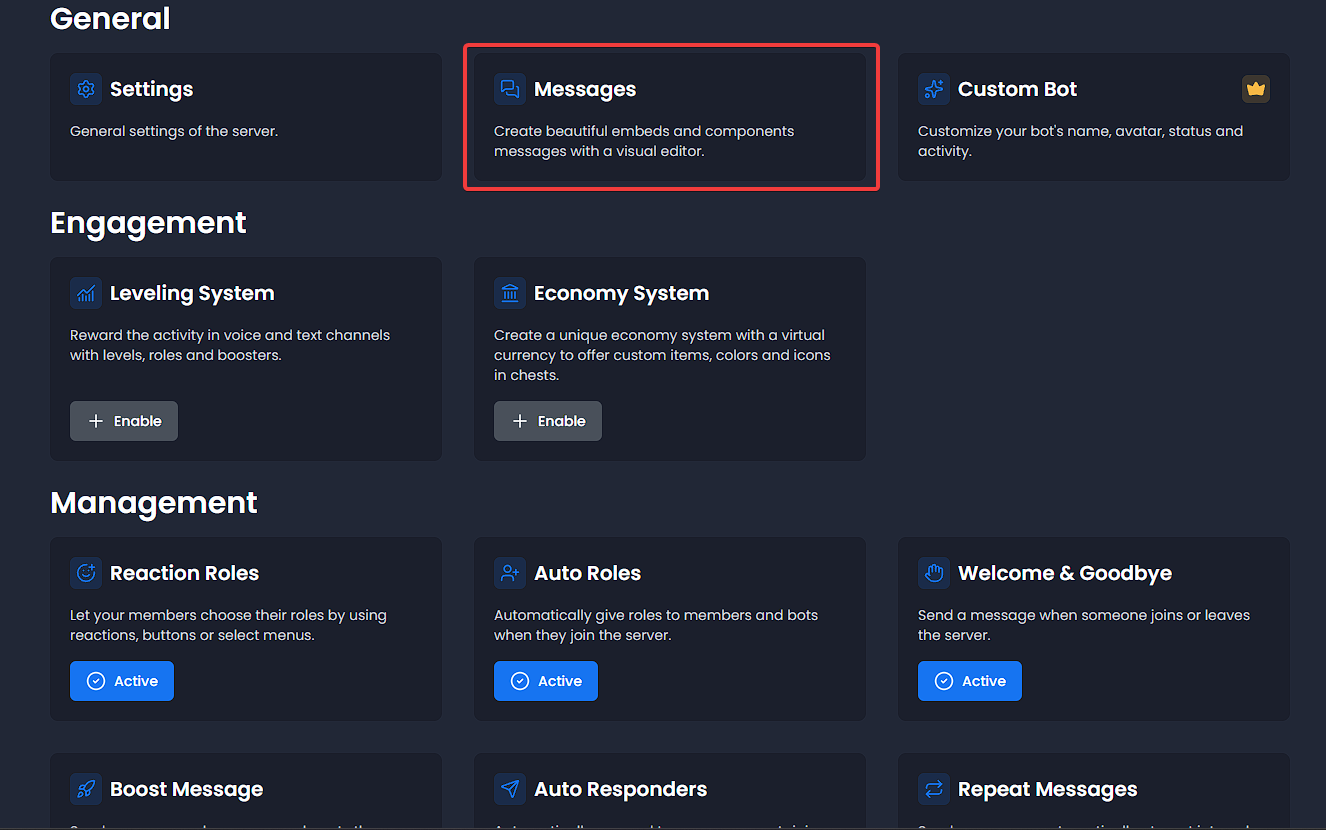
- Click on the Messages module.
Creating a Message
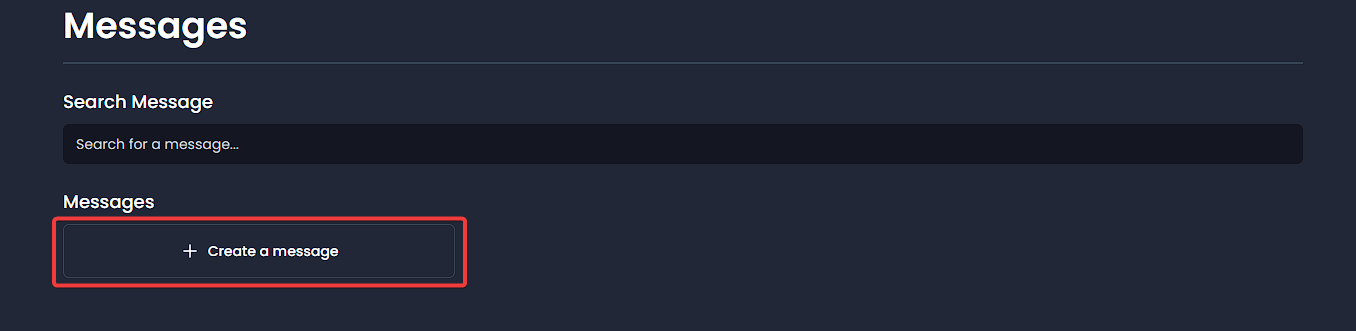
- Click on Create a Message.
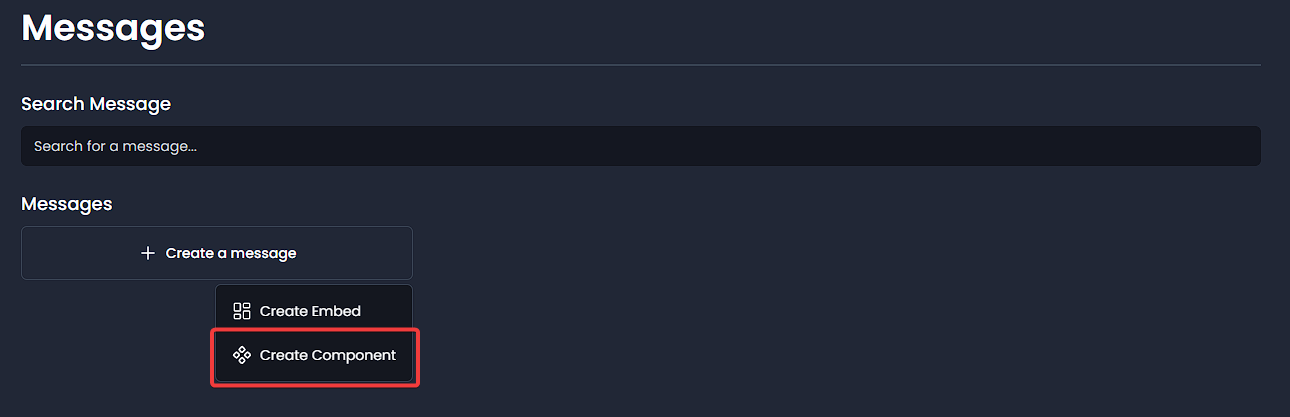
- Select Create Component.
- Component Name: Set a custom name to organize your components
Configuring Components
Add and customize components to build your message.
Container
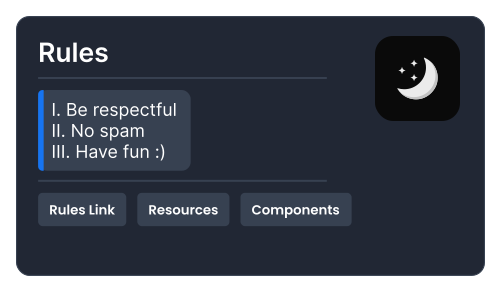
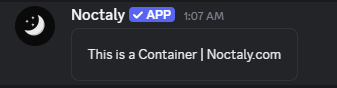
Acts as a parent component to group other components inside it for an embed-like structure, used for design purposes with customizable colors. Displays as a colored box containing its nested components on Discord.
- Click Add Component and select Container.
- Choose a background color.
- Add nested components (e.g., Text) by clicking Add Component inside the Container.
Text
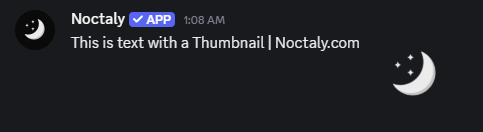
Adds formatted text to your message. Shows as plain or formatted text (e.g. **bold**, > quote) within a Container or standalone on Discord. Button links or thumbnails can be added directly without a Container.
- Click Add Component and select Text.
- Enter text with formatting.
- Optionally, add a Thumbnail or Button Link.
- Thumbnail: Upload an image.
- Button Link: Add a labeled link.
Media
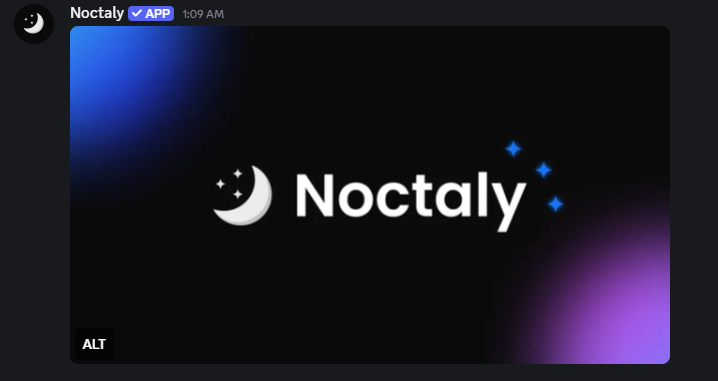
Embeds images or media files in your message. Displays as an image with an optional description below it; can be spoiler-tagged on Discord.
- Click Add Component and select Media.
- Click Add Media to upload an image.
- Upload your file and add a description (optional).
- Toggle Spoiler to hide behind a spoiler tag if needed.
Separator
Adds a visual break or divider between components. Shows as a horizontal line; can be invisible or take up more space on Discord.
- Click Add Component and select Separator.
- Use the eye icon to hide/show it.
- Use the adjust icon to increase/decrease space.

Button Link
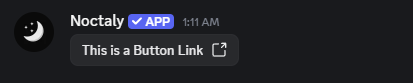
Adds a clickable button with a URL. Displays as a button with a label and optional emoji, linking to the specified URL on Discord.
- Click Add Component and select Button Link.
- Enter the button text (e.g., "Click Me").
- Input the link (e.g.,
https://noctaly.com). - Add an emoji (optional).