Home
Tabla de Contenidos
- Add Noctaly to Your Discord Server
- Enable AutoMod Rules
- Configure AutoMod Rules
- Configure Anti Spam
- Configure Anti Invites
- Configure Anti Links
- Configure Capitals Spam
- Configure Mentions Spam
- Configure Anti Scam
- Configure Banned Words
- Configure Global Options
- Duration Settings
- Troubleshooting
- The rule doesn't trigger
How to Set Up an AutoMod on Discord
Última actualización: 9 de junio de 2026
Add Noctaly to Your Discord Server
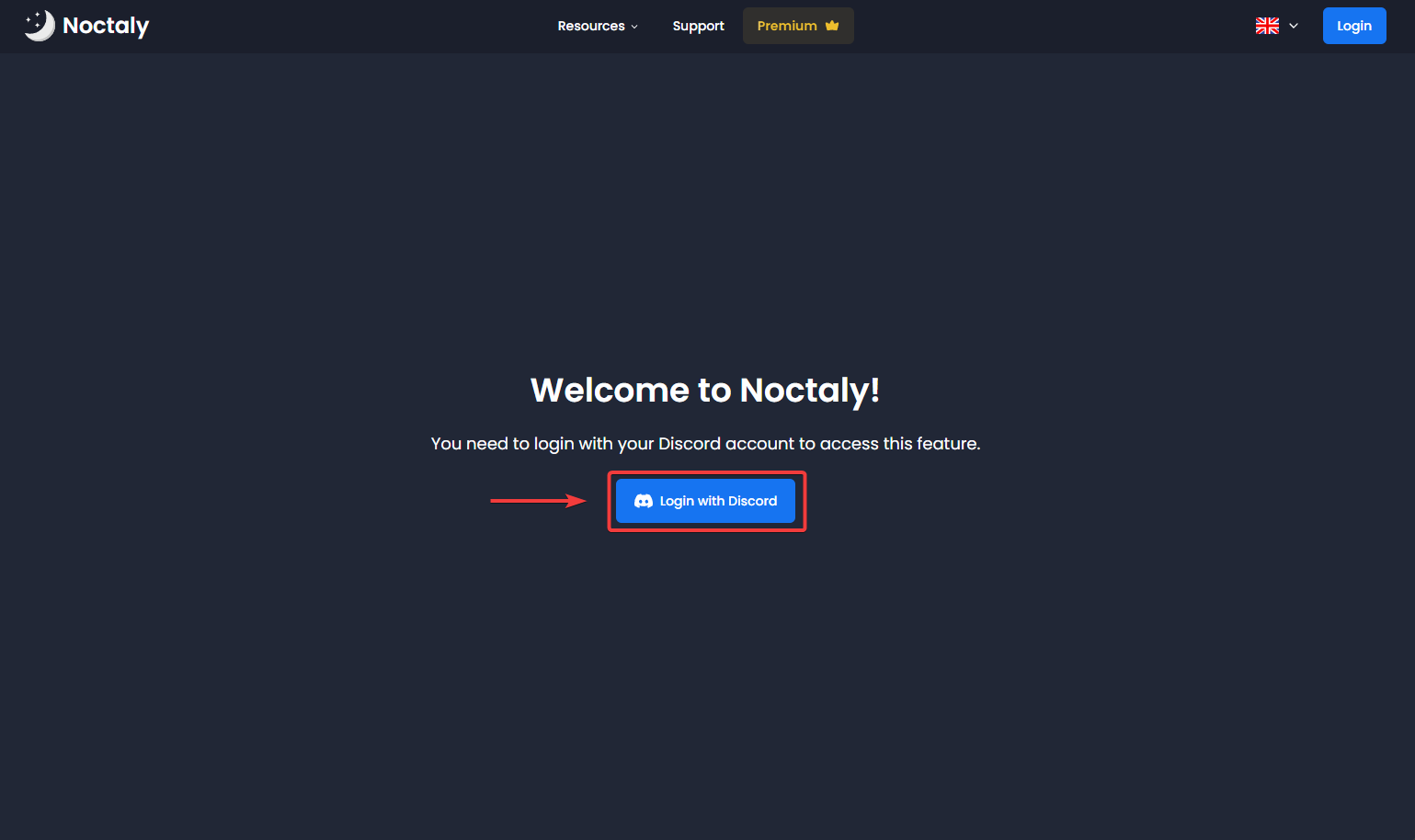
- Go to the Dashboard, and login to your Discord account, if needed.
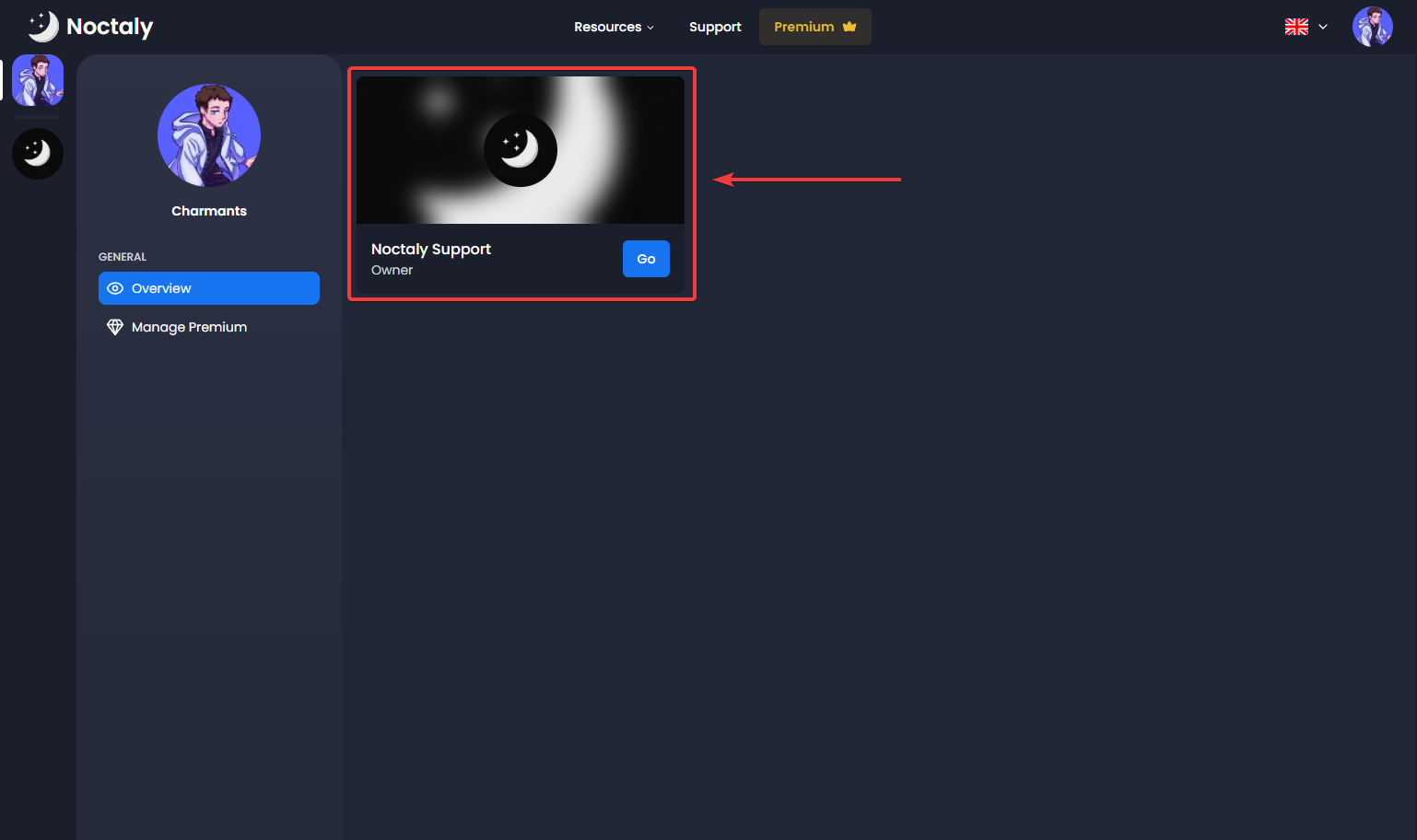
- Select the server you want to set up AutoMod in.
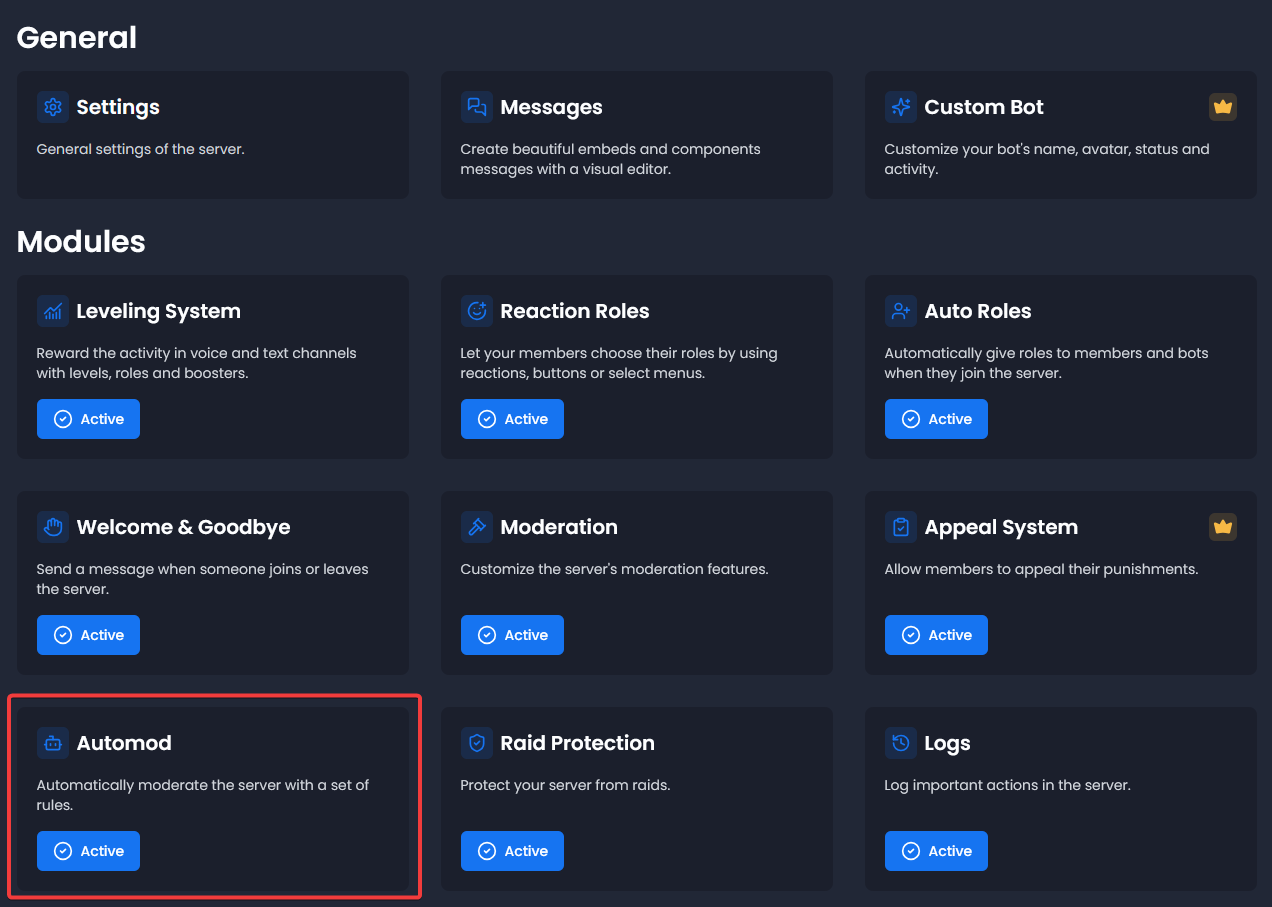
- Select the AutoMod module.
Enable AutoMod Rules
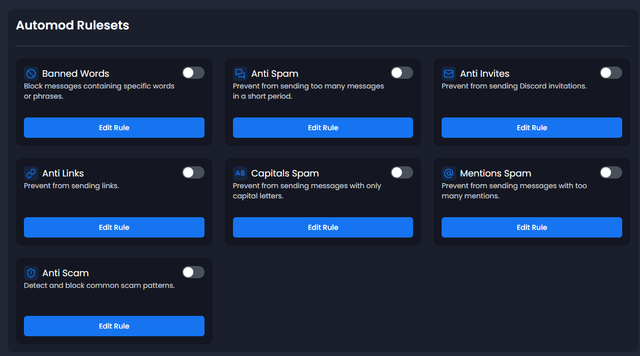
- In the AutoMod dashboard, you'll see a list of available rulesets:
- Anti Spam
- Anti Invites
- Anti Links
- Capitals Spam
- Mentions Spam
- Anti Scam
- Banned Words
- Toggle the rules you want to activate by toggling the switches.
Configure AutoMod Rules
Configure Anti Spam
Prevent users from sending too many messages in a short period of time.
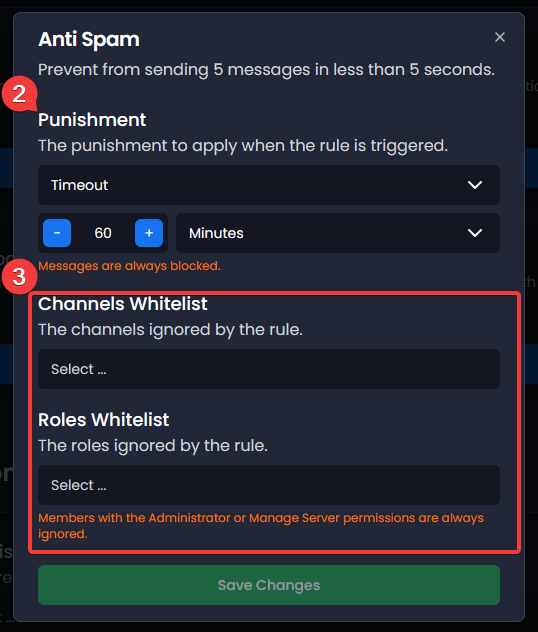
- Click Edit Rule below the Anti Spam rule.
- Customize the spam thresholds:
- Maximum messages
- Time interval in seconds
- Set punishment:
- Ban (set duration in minutes/hours/days)
- Kick
- Timeout (set duration in minutes/hours/days)
- None
- You can whitelist channels & roles to prevent the rule from affecting them.
Configure Anti Invites
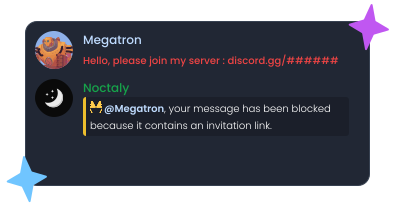
Prevent users from sending Discord invitation links.
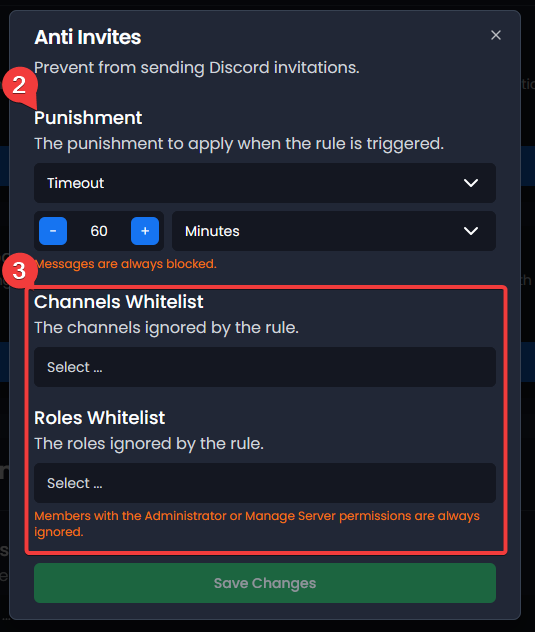
- Click Edit Rule below the Anti Invites rule.
- Set punishment:
- Ban (set duration in minutes/hours/days)
- Kick
- Timeout (set duration in minutes/hours/days)
- None
- You can whitelist channels & roles to prevent the rule from affecting them.
Configure Anti Links
Prevent users from sending links.
- Click Edit Rule below the Anti Links rule.
- Add domains to whitelist:
- Use
example.comfor exact matches - Use
examplefor partial matches
- Use
- Set punishment:
- Ban (set duration in minutes/hours/days)
- Kick
- Timeout (set duration in minutes/hours/days)
- None
- You can whitelist channels & roles to prevent the rule from affecting them.

Configure Capitals Spam
Prevent users from sending messages with excessive capital letters.
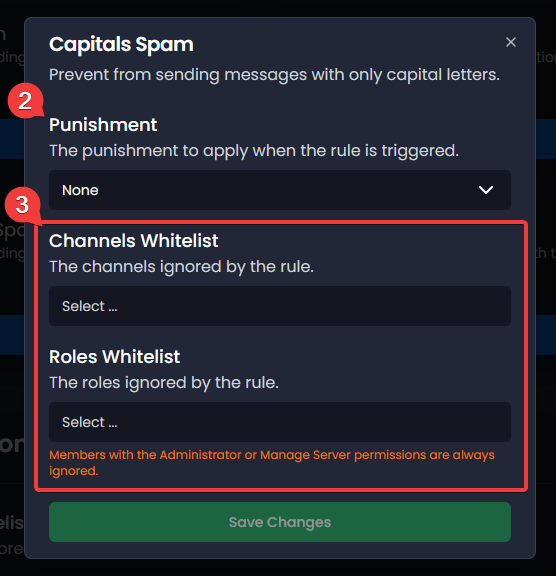
- Click Edit Rule below the Capitals Spam rule.
- Set punishment:
- Ban (set duration in minutes/hours/days)
- Kick
- Timeout (set duration in minutes/hours/days)
- None
- You can whitelist channels & roles to prevent the rule from affecting them.
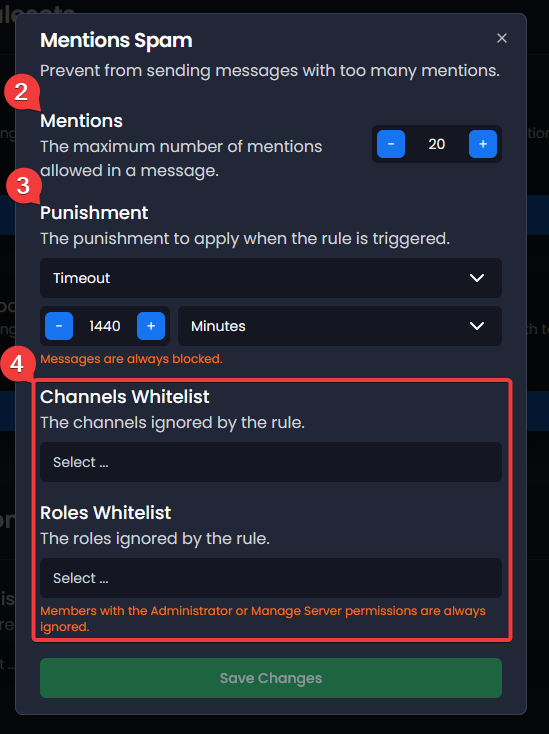
Configure Mentions Spam
Prevent users from sending messages with too many mentions.
- Click Edit Rule below the Mentions Spam rule.
- Set the maximum number of mentions allowed in a message.
- Set punishment:
- Ban (set duration in minutes/hours/days)
- Kick
- Timeout (set duration in minutes/hours/days)
- None
- You can whitelist channels & roles to prevent the rule from affecting them.
Configure Anti Scam
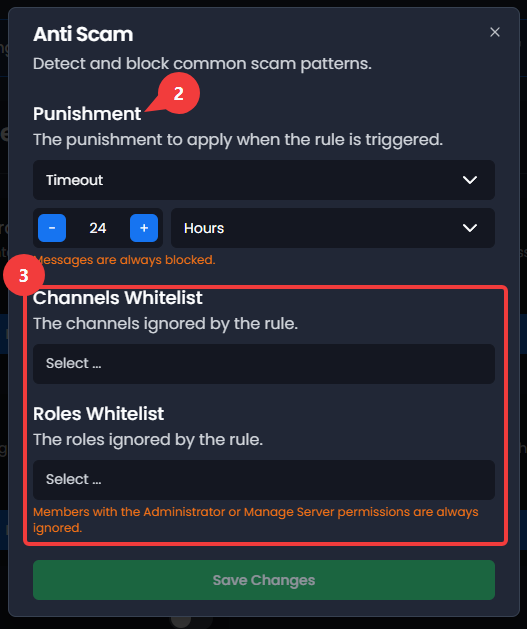
Prevent common scam messages and phishing attempts.
- Click Edit Rule below the Anti Scam rule.
- Set punishment:
- Ban (set duration in minutes/hours/days)
- Kick
- Timeout (set duration in minutes/hours/days)
- None
- You can whitelist channels & roles to prevent the rule from affecting them.
NoteThe Anti Scam rule is best effort and may not catch all scam messages.
Configure Banned Words
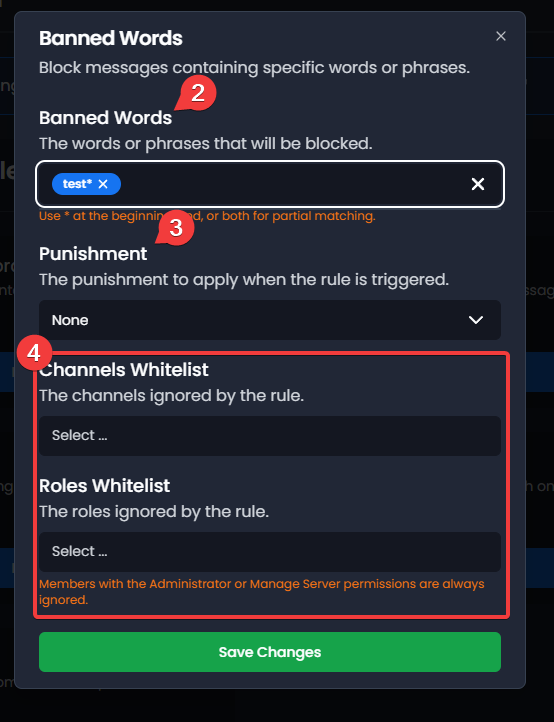
Prevent users from sending specific words or phrases.
- Click Edit Rule below the Banned Words rule.
- Add the words or phrases you want to block.
- Set punishment:
- Ban (set duration in minutes/hours/days)
- Kick
- Timeout (set duration in minutes/hours/days)
- None
- You can whitelist channels & roles to prevent the rule from affecting them.
Configure Global Options
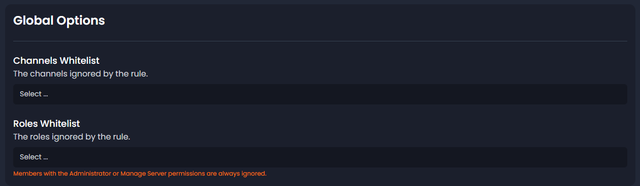
- Channels Whitelist: Selected channels bypass AutoMod rules.
- Roles Whitelist: Members with these roles bypass AutoMod rules.
- Members with the Administrator or Manage Server permissions are always ignored.
Duration Settings
For Bans and Timeouts:
- Minutes (1-1440)
- Hours (1-24)
- Days (1-365)
- Permanent (for bans only)
- Use the dropdown to switch between units.
Troubleshooting
The rule doesn't trigger
- Verify the rule is toggled ON.
- Check that Noctaly has proper permissions:
- Ban Members
- Kick Members
- Moderate Members
- Make sure the user or channel is not whitelisted.
- Make sure the member does not have Administrator or Manage Server permissions.